
一眼就知道自己在哪儿
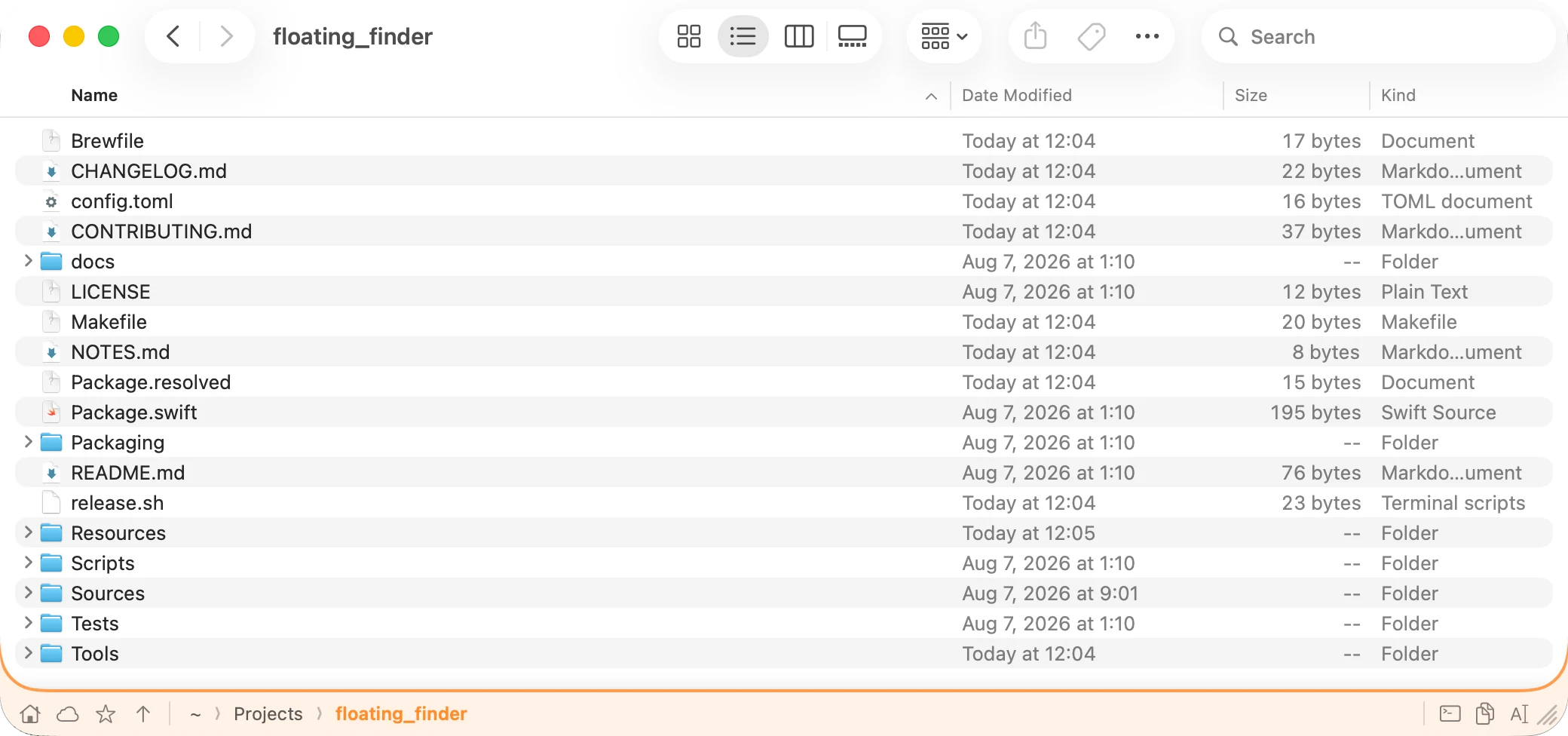
你在文件资源管理器里用惯的那条路径栏,现在每个访达窗口都有。点其中任意一段,就跳到那一层。点空白处,它变成一个能输入路径的输入框。拷贝完整路径、在终端里打开这个文件夹、把它收进书签,都不用离开窗口。
- 点路径中任意一段即可跳转
- 直接输入路径,回车
- 一点就把路径拷进剪贴板
- 在终端里打开,用哪个终端可以指定
- 常去的文件夹收进书签

刚从 Windows 换到 Mac,几乎人人都会撞上三堵墙:看不到当前文件夹的路径,没有地方能直接输入地址,做点什么就冒出一个新窗口。这三件,一并解决。
30 天免费试用、全部功能、macOS 14 Sonoma 及以上、Apple 芯片
地址栏 这条栏不属于访达,却一直跟着窗口走。移动、缩放、切换桌面,都不会掉队。 图里用的是橙色,另有七种颜色,也可以跟随系统强调色。
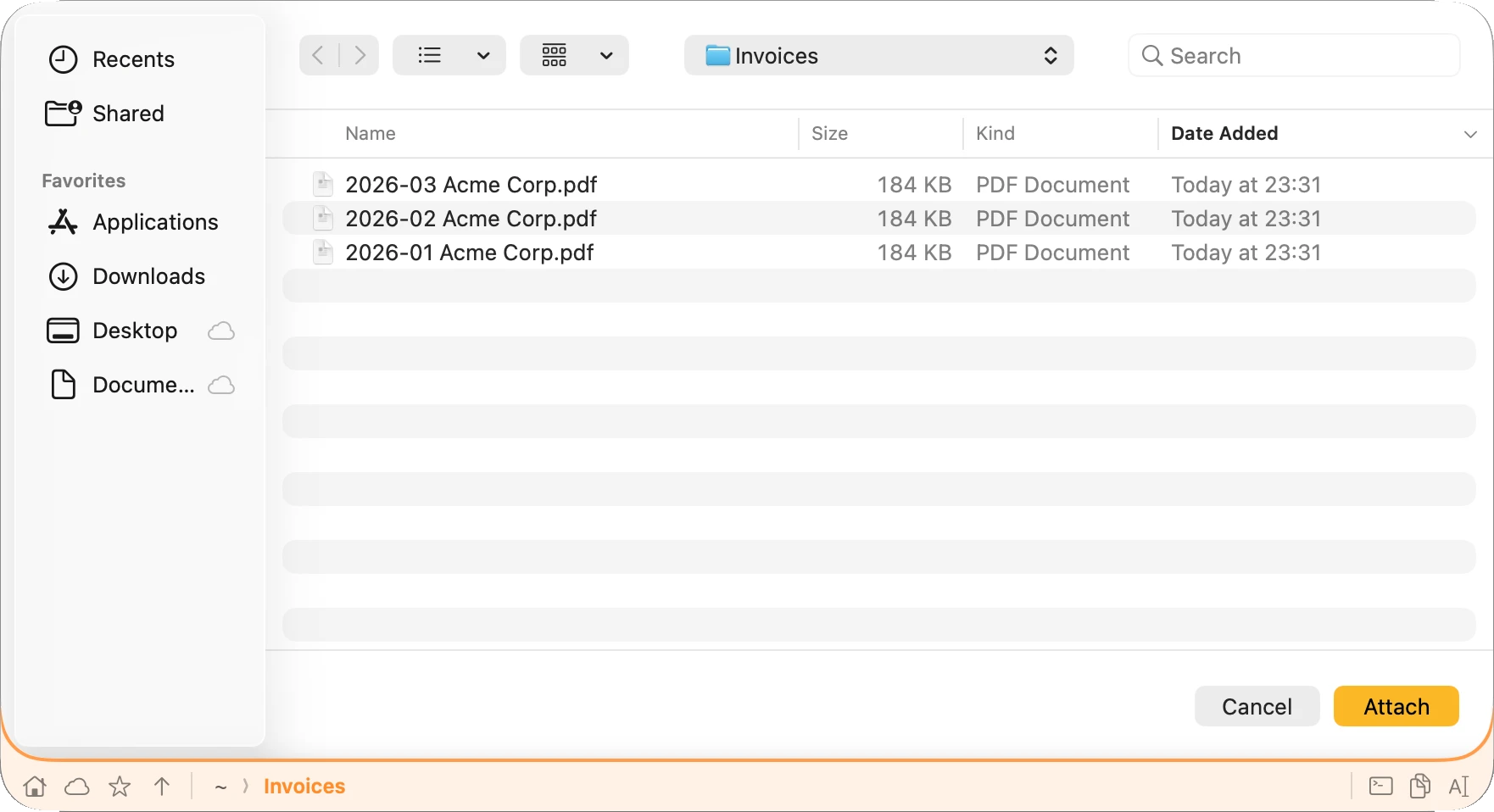
“打开”和“存储”对话框 别的 App 的对话框下面也有同一条栏。访达自带那条路径栏从不出现在那儿。 输入路径,或者直接选一个访达里已经在用的书签。
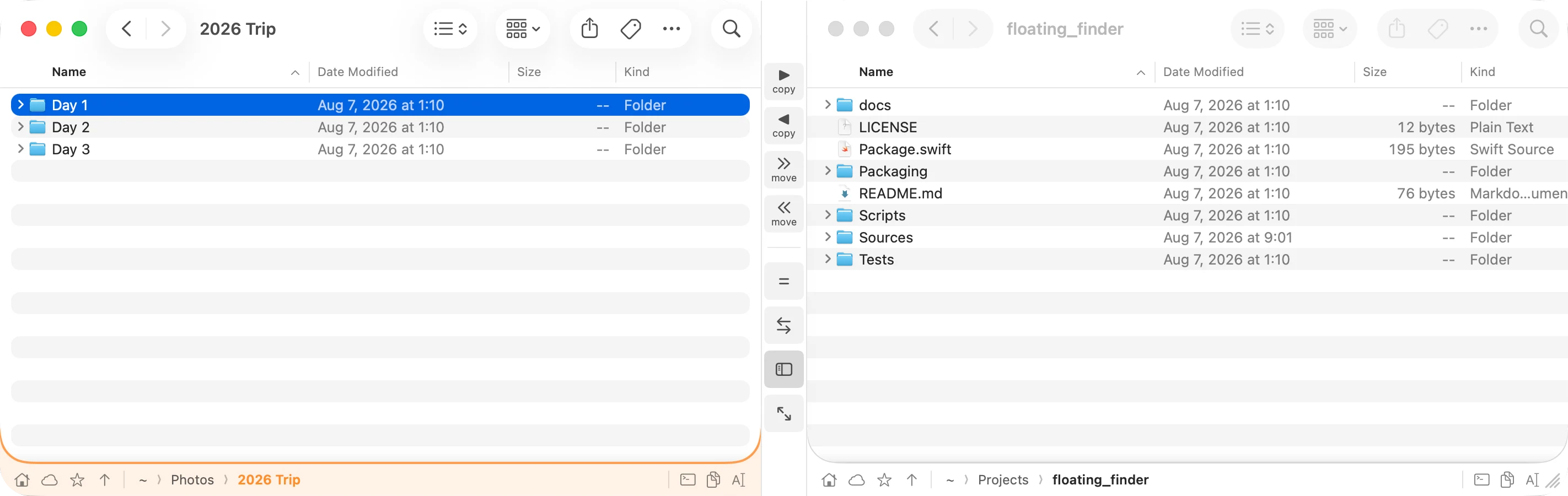
双窗格 两个访达窗口拼成一对,中间是一条传文件的操作栏。 选中的文件一点就送到对面,按住 ⌥ 则是移动。
你在文件资源管理器里用惯的那条路径栏,现在每个访达窗口都有。点其中任意一段,就跳到那一层。点空白处,它变成一个能输入路径的输入框。拷贝完整路径、在终端里打开这个文件夹、把它收进书签,都不用离开窗口。
添加附件、挑导出位置、把下载的东西存到指定地方,这些都发生在别的 App 那个又小又挤的对话框里,而访达自带那条路径栏不会出现在那儿。这条会。同一条路径栏贴在对话框下方,书签也和访达共用一份,不用一层层点下去,直接去目标文件夹。
在菜单栏里选“启用双窗格”,两个访达窗口就拼成一对,中间多出一条操作栏。选中的文件一点就送到对面,按住 ⌥ 则是移动而不是拷贝。把一边的位置映射到另一边、左右对调、把边栏折起来,这些也都做得到。
从别的 App 选“在访达中显示”,在终端里敲 open .,在某处双击一个文件夹。每来一次,屏幕上就多一个访达窗口。双窗格开着的时候,新窗口会被接住,里面的文件夹交给某个窗格,然后趁它还没坐稳就关掉。
只有双窗格模式下才这样。不在这个模式时,绝不会在你背后关掉任何窗口,这一点说到做到。
从 Windows 换过来的人,最先撞上的就是这一处:地址栏没了。macOS 也有一条只能看的路径栏可以打开(显示 → 显示路径栏),另外还有一个“前往文件夹”对话框(⇧⌘G)。可就是没有一个地方,能一边看着一边往里输入。下面把那些习惯一一对上。
| 文件资源管理器里 | Mac 上,配合 Floating Finder |
|---|---|
| 顶部的地址栏,点一段就跳 | 窗口底部的路径栏,点一段就跳 |
点地址栏,输入 C:\Users\…,回车 |
点栏上空白处,输入 ~/Documents/…,回车 |
| 从地址栏里把路径拷出来 | 点一下栏上的拷贝按钮 |
| 两个资源管理器窗口左右吸附 | 两个访达窗口拼成一对,中间有操作栏 |
| 在两个窗口之间拖文件 | 拖,或者按一下按钮送过去(⌥ 为移动) |
| 快速访问、固定的文件夹 | 点栏上的星号打开书签 |
| 在当前文件夹开一个终端 | 栏上的一个按钮,用哪个终端可以指定 |
| “打开”和“存储”对话框里也有地址栏 | 这一条也有,在别的 App 的对话框里 |
下载前先说清楚,这些近期都没有计划:
没有程序坞图标,也没有自己的窗口。访达在,才露面。
路径栏有八种颜色,也可以跟随系统强调色。浅色深色下都看得清楚。
不只是菜单,是整个界面。跟着系统语言走。
这条栏盖住了访达下边缘,于是把这活也接了过来。拖它的下边,或者右下角那道斜纹。
辅助功能、自动化,缺了哪项权限,菜单里直接写出名字,不会闷头罢工。
没有一样东西是重写的。快速查看、标记、排序、分栏视图、扩展、iCloud、边栏、手感,全都来自 Apple 那个访达。这边只读窗口位置,再画在上面。退出,立刻回到原样,什么也不留下。
Not really. Finder has a Path Bar you can switch on (View → Show Path Bar, ⌥⌘P) that shows the folders above you and lets you double-click one to jump — but you can't type into it. Typing a path means a separate dialog, Go to Folder (⇧⌘G), which disappears again once you've used it. Floating Finder is the missing half: the same bar, but you can click into it and type.
The built-in one only shows. This one acts: type a path into it, copy the path, open the folder in a terminal, bookmark it, and drag its lower edge to resize the window. It also stays with the window when you move it, and it's the same bar in other apps' Open and Save dialogs, which the built-in Path Bar never appears in.
No. It's a companion that runs alongside Finder and draws floating UI over the real windows. Your Finder settings, extensions and habits are untouched.
That's the only supported way for an app to read another app's window positions and contents. Floating Finder uses it to know where each Finder window is, so the path bar can sit on it and follow it. Without the permission, nothing appears.
Apple Events are how it tells Finder to do things: change a window's folder, copy or move the selection, open a second window. macOS asks you to approve Floating Finder → Finder the first time. Without it, the display works but the actions don't.
Optional, and only for one case: moving files between protected folders like Documents, Desktop and Downloads. Copying and normal dragging don't need it. If a move quietly fails, that's the setting to check.
You get an occasional, unaggressive reminder to buy a license. Nothing is disabled and nothing locks up. Buying is how you make the reminder stop — and how this keeps being worth maintaining.
Three. One purchase activates on up to three Macs — a desktop and a laptop, or a machine at work and one at home. The key is checked once, when you activate it; after that it's stored on that Mac and the app keeps working offline, with no repeat check-ins.
macOS 14 Sonoma and later, on Apple silicon. The download is an arm64 build and will not run on an Intel Mac. Development and testing happen on the current macOS release.
It reacts to events rather than redrawing on a loop: it wakes when Finder reports that a window moved, resized or changed folder. Sitting idle, it does essentially nothing.
