
いまどこにいるか、ひと目で分かる。
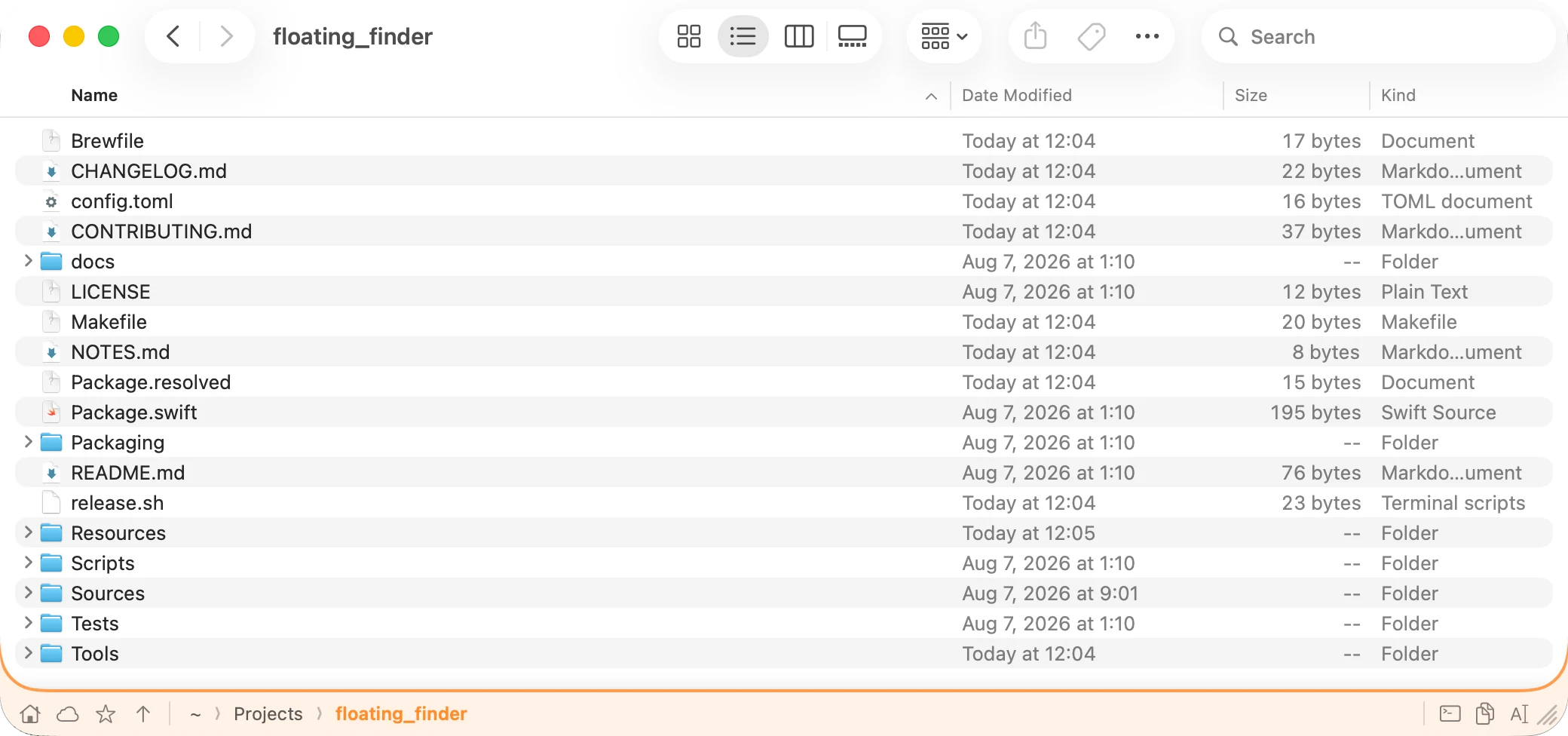
エクスプローラーで使っていたパンくず式のアドレスバーが、Finder のすべてのウィンドウに付きます。パンくずを押せばその階層へ移動します。空いているところを押せば、パスを打ち込む欄に変わります。フルパスのコピーも、ターミナルで開くのも、ブックマークへの登録も、ウィンドウを離れずにできます。
- パンくずを押して階層移動
- パスを直接打って Enter
- パスをワンクリックでコピー
- ターミナルで開く(使うアプリは指定可)
- よく戻るフォルダをブックマークに

Windows から Mac に乗り換えた直後、誰もが直面する 3 つの壁があります。「開いているフォルダのパスが見えない」「アドレスを直接入力する欄がない」「何かと新しいウィンドウが立ち上がる」。この 3 つの悩み、まとめて解決します。
30 日間の無料トライアル・全機能・macOS 14 Sonoma 以降・Apple Silicon
Address bar Finder の一部ではありません。それでもウィンドウから離れません。動かしても、大きさを変えても、デスクトップを切り替えても付いてきます。 図の色はオレンジ。ほかに 7 色と、システムのアクセントカラーから選べます。
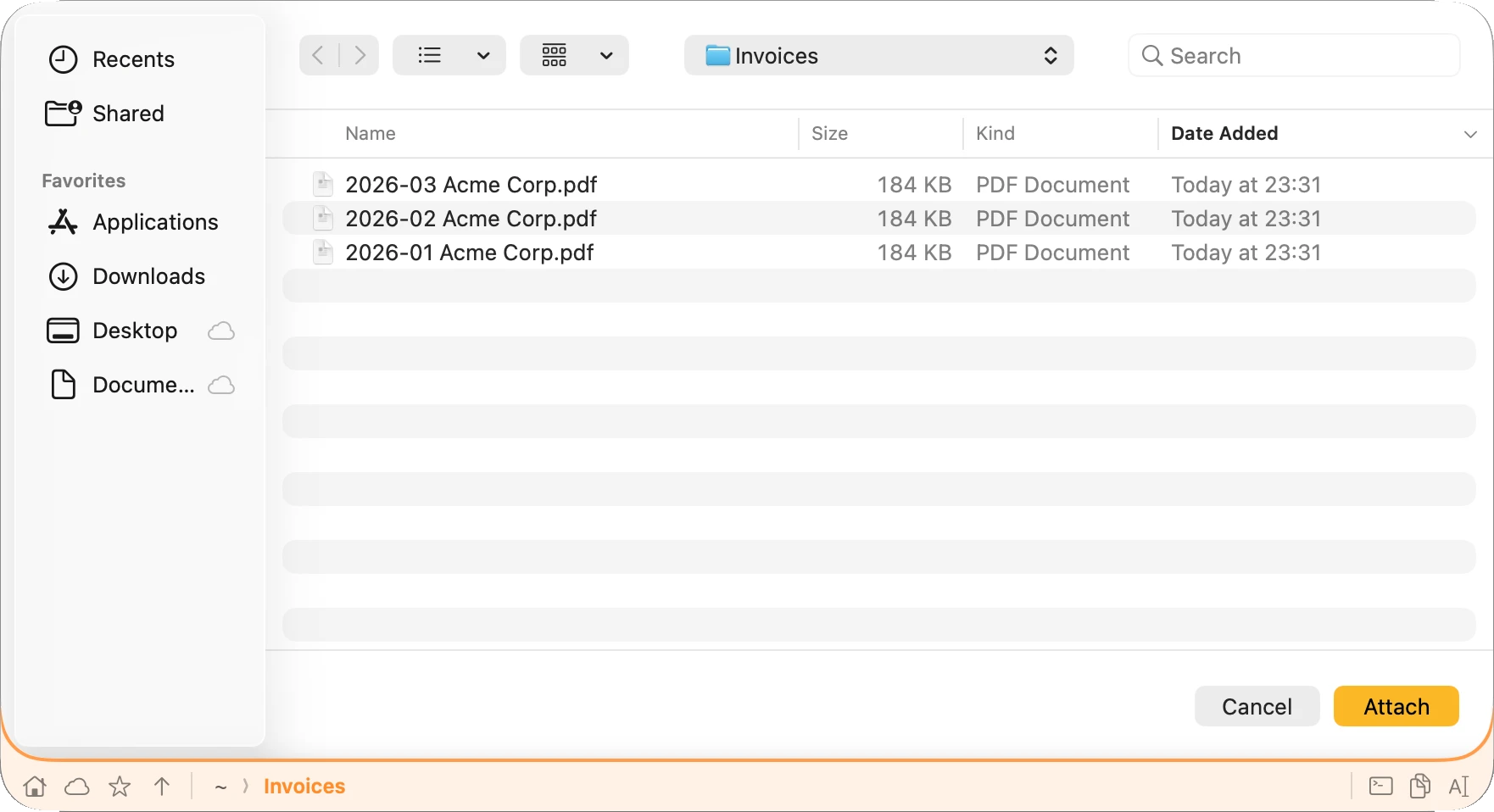
Open and Save dialogs 他のアプリのダイアログにも同じバーが出ます。Finder のパスバーが決して現れない場所です。 パスを打つか、Finder で使っているブックマークから選ぶだけ。
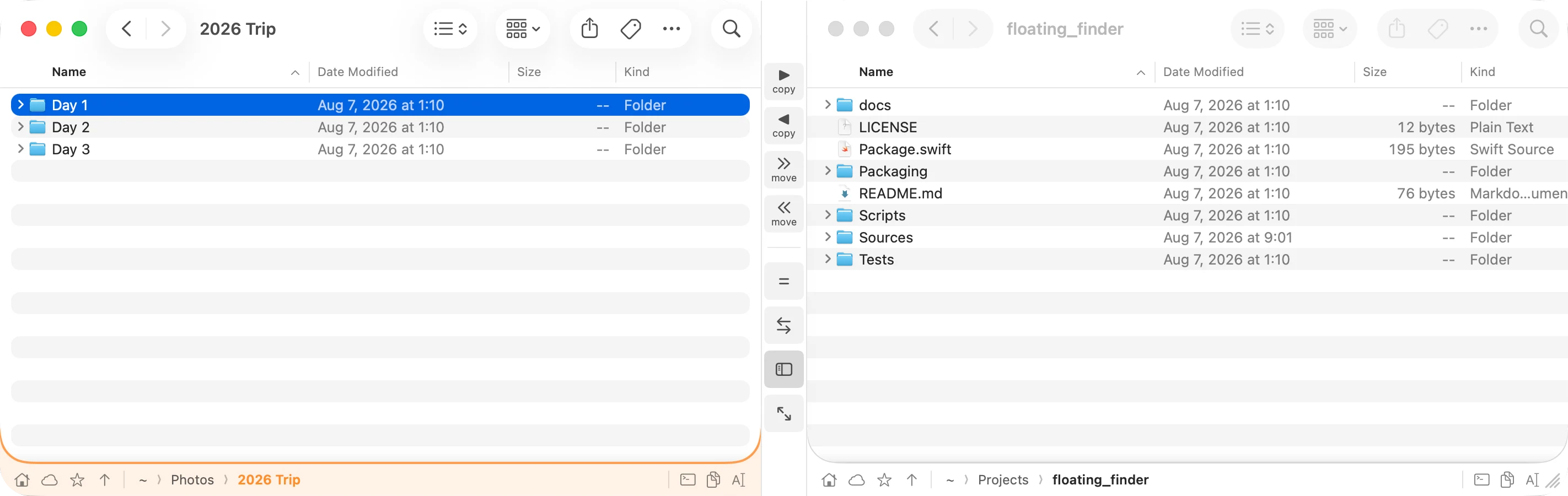
Two panes ウィンドウ 2 枚が 1 組に組まれ、真ん中に受け渡しの操作列が出ます。 選んだファイルは、ワンクリックで向こう側へ送れます。⌥ を押しながらなら移動になります。
エクスプローラーで使っていたパンくず式のアドレスバーが、Finder のすべてのウィンドウに付きます。パンくずを押せばその階層へ移動します。空いているところを押せば、パスを打ち込む欄に変わります。フルパスのコピーも、ターミナルで開くのも、ブックマークへの登録も、ウィンドウを離れずにできます。
ファイルを添付する。書き出し先を選ぶ。ダウンロードしたものを決まった場所に置く。どれも他のアプリの狭いダイアログの中で起きることで、Finder のパスバーはそこに現れません。こちらのバーは現れます。同じパンくずがダイアログの下に付き、ブックマークも Finder と共通なので、階層をたどらずに目当てのフォルダへ直行できます。
メニューバーから「2 ペインにする」を選ぶと、ウィンドウ 2 枚が 1 組に組まれ、真ん中に操作列が出ます。選んだファイルは、ワンクリックで向こう側へ送れます。⌥ を押しながらならコピーではなく移動になります。片方の場所をもう片方に映す、左右を入れ替える、サイドバーを畳む、といったこともできます。
他のアプリからの「Finder に表示」。シェルで叩く open .。どこかでフォルダをダブルクリック。そのたびに Finder ウィンドウが 1 枚ずつ増えていきます。2 ペインの間は、新しいウィンドウを受け取り、中のフォルダをペインに渡してから、居座る前に閉じます。
こうするのは 2 ペインのときだけ。それ以外では、知らないうちにウィンドウが閉じられることはありません。
Windows から移ってきた人が、まず引っかかるところです。アドレスバーがない。読むだけのパスバーはありますし(表示 → パスバーを表示)、「フォルダへ移動」というダイアログ(⇧⌘G)も別にあります。ただ、見ながら同じ場所に打ち込めるものがありません。慣れた操作がどう変わるかを並べました。
| エクスプローラーでは | Mac では(Floating Finder あり) |
|---|---|
| 上部のアドレスバー。パンくずを押して移動 | ウィンドウ下端のパンくずバー。押して移動 |
アドレスバーを押し、C:\Users\… と打って Enter |
バーの空いているところを押し、~/Documents/… と打って Enter |
| アドレスバーからパスをコピー | バーのコピーボタンをワンクリック |
| エクスプローラーを 2 枚、左右に並べる | Finder のウィンドウ 2 枚を 1 組に。間に操作列 |
| 2 つのウィンドウの間でファイルをドラッグ | ドラッグ、またはボタン 1 つで送る(⌥ で移動) |
| クイックアクセス、ピン留めしたフォルダ | バーの☆から開くブックマーク |
| いまのフォルダでターミナルを開く | バーのボタン。どのターミナルを使うかは指定可 |
| 「開く」「保存」ダイアログにもアドレスバー | こちらのバーも、他のアプリのダイアログに |
ダウンロードする前に知っておいてください。どれも当面は予定していません。
Dock にアイコンは出ず、自分のウィンドウも持ちません。Finder がいるときだけ姿を見せます。
パスバーの色を選べます。システムのアクセントカラーに合わせることも。ライトもダークもきちんと見えます。
メニューだけでなく、画面のすべて。システムの言語に合わせて切り替わります。
Finder の下端を覆うので、その役目も引き受けます。バーの下端か、右下の斜線をドラッグしてください。
アクセシビリティやオートメーションなど、足りない許可はメニューにそのまま名前で出ます。何も言わずに動かないまま、ということはありません。
作り直したものは一つもありません。クイックルック、タグ、並べ替え、カラム表示、機能拡張、iCloud、サイドバー、体が覚えた操作。どれも Apple の Finder そのものです。ウィンドウの位置を読んで、その上に描いているだけ。終了すればすぐ元の Finder に戻り、痕跡は残りません。
Not really. Finder has a Path Bar you can switch on (View → Show Path Bar, ⌥⌘P) that shows the folders above you and lets you double-click one to jump — but you can't type into it. Typing a path means a separate dialog, Go to Folder (⇧⌘G), which disappears again once you've used it. Floating Finder is the missing half: the same bar, but you can click into it and type.
The built-in one only shows. This one acts: type a path into it, copy the path, open the folder in a terminal, bookmark it, and drag its lower edge to resize the window. It also stays with the window when you move it, and it's the same bar in other apps' Open and Save dialogs, which the built-in Path Bar never appears in.
No. It's a companion that runs alongside Finder and draws floating UI over the real windows. Your Finder settings, extensions and habits are untouched.
That's the only supported way for an app to read another app's window positions and contents. Floating Finder uses it to know where each Finder window is, so the path bar can sit on it and follow it. Without the permission, nothing appears.
Apple Events are how it tells Finder to do things: change a window's folder, copy or move the selection, open a second window. macOS asks you to approve Floating Finder → Finder the first time. Without it, the display works but the actions don't.
Optional, and only for one case: moving files between protected folders like Documents, Desktop and Downloads. Copying and normal dragging don't need it. If a move quietly fails, that's the setting to check.
You get an occasional, unaggressive reminder to buy a license. Nothing is disabled and nothing locks up. Buying is how you make the reminder stop — and how this keeps being worth maintaining.
Three. One purchase activates on up to three Macs — a desktop and a laptop, or a machine at work and one at home. The key is checked once, when you activate it; after that it's stored on that Mac and the app keeps working offline, with no repeat check-ins.
macOS 14 Sonoma and later, on Apple silicon. The download is an arm64 build and will not run on an Intel Mac. Development and testing happen on the current macOS release.
It reacts to events rather than redrawing on a loop: it wakes when Finder reports that a window moved, resized or changed folder. Sitting idle, it does essentially nothing.
